CI/CD pipelines in the VS Code extension
- Tier: Free, Premium, Ultimate
- Offering: GitLab.com, GitLab Self-Managed, GitLab Dedicated
Version history
- Introduced in GitLab VS Code extension 6.14.0 for GitLab 18.1 and later.
- Added downstream pipeline logs for GitLab 18.1 and later.
If your project uses GitLab CI/CD pipelines, you can use the GitLab for VS Code extension to start, monitor, and update pipelines directly in your IDE.
Prerequisites
- Authenticate the extension and connect to a repository on GitLab.
Monitor and manage pipelines
Use the extension to monitor and manage pipelines for your project.
Prerequisites:
- Your project uses CI/CD pipelines.
- A merge request exists for your current Git branch.
- The most recent commit on your current Git branch has a CI/CD pipeline.
View pipeline status
To view the status of your branch pipeline, check the bottom status bar in VS Code.

Possible statuses include:
- Pipeline canceled
- Pipeline failed
- Pipeline passed
- Pipeline pending
- Pipeline running
- Pipeline skipped
- No pipeline, if a pipeline has not run yet.
Manage pipelines
To start, monitor, and debug CI/CD pipelines in GitLab:
-
In VS Code, in the bottom status bar, select the pipeline status to open the Command Palette and access the available actions.
-
Select your desired action and follow the prompts:
- Create New Pipeline from Current Branch
- Cancel Last Pipeline
- Download Artifacts from Latest Pipeline
- Retry Last Pipeline
- View Latest Pipeline on GitLab
View CI/CD job output
To view the output for a CI/CD job for your current branch:
-
In the left sidebar, select GitLab ({tanuki}).
-
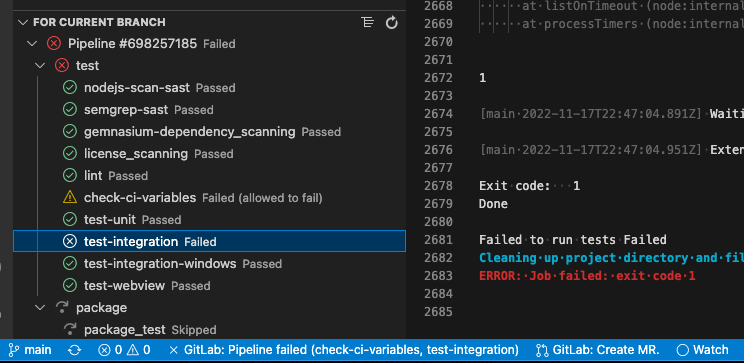
Expand For current branch to view the most recent pipeline.
-
Select a job to open it in a new VS Code tab:

To open a downstream pipeline's job log:
- Find downstream pipelines under the list of branch pipeline jobs.
- Select the arrow icons to expand or collapse the downstream pipeline information.
- Select a downstream pipeline to open the job log in a new VS Code tab.
Manage pipeline alerts
The extension can display an alert in VS Code when a pipeline for your current branch completes:

To turn pipeline alerts on or off:
- In VS Code, open the Settings editor:
- For macOS, press Command+,.
- For Windows or Linux, press Control+,.
- Depending on your configuration, select either User or Workspace settings.
- Select Extensions > GitLab > Other.
- Under GitLab: Show Pipeline Update Notifications, select or deselect the checkbox.
Manage your CI/CD configuration
The extension also provides tools you can use to create and manage the CI/CD configuration for your project.
Autocomplete CI/CD variables
When you write or edit your CI/CD configuration file, use variable autocompletion to find variables quickly.
Prerequisites:
- The name of your CI/CD configuration file starts with
.gitlab-ciand ends with.ymlor.yaml. For example,.gitlab-ci.ymlor.gitlab-ci.production.yml
To autocomplete a variable:
-
In VS Code, open your
.gitlab-ci.ymlfile, and ensure the file's tab is in focus. -
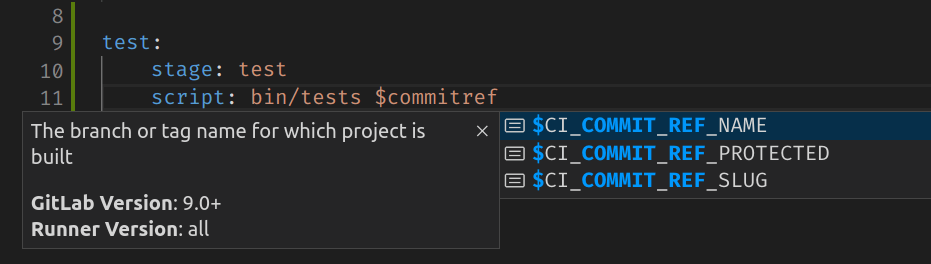
Begin entering the variable name. The extension displays autocomplete options.
-
Select an option to use it:
Test GitLab CI/CD configuration
To test your project's GitLab CI/CD configuration locally:
- In VS Code, open your
.gitlab-ci.ymlfile, and ensure the file's tab is in focus. - Open the Command Palette:
- For macOS, press Command+Shift+P.
- For Windows or Linux, press Control+Shift+P.
- Type
GitLab: Validate GitLab CI Configand press Enter.
The extension shows an alert if it detects a problem with your configuration.
Show merged configuration file
To see a preview of your merged CI/CD configuration file, with all includes and references resolved:
-
In VS Code, open your
.gitlab-ci.ymlfile, and ensure the file's tab is in focus. -
In the upper right, select Show Merged GitLab CI/CD Configuration:
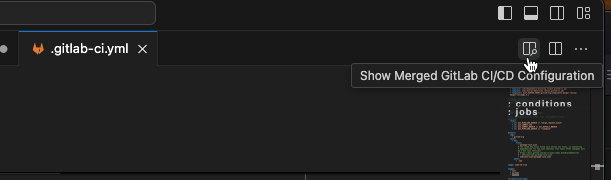
VS Code opens a new tab (.gitlab-ci (Merged).yml) with full information.